Lookup – search behaviour
Taken from: https://crmtipoftheday.com/1438/turn-on-auto-search-for-lookups/
Update these settings as per the screenshot to improve the search experience for users:
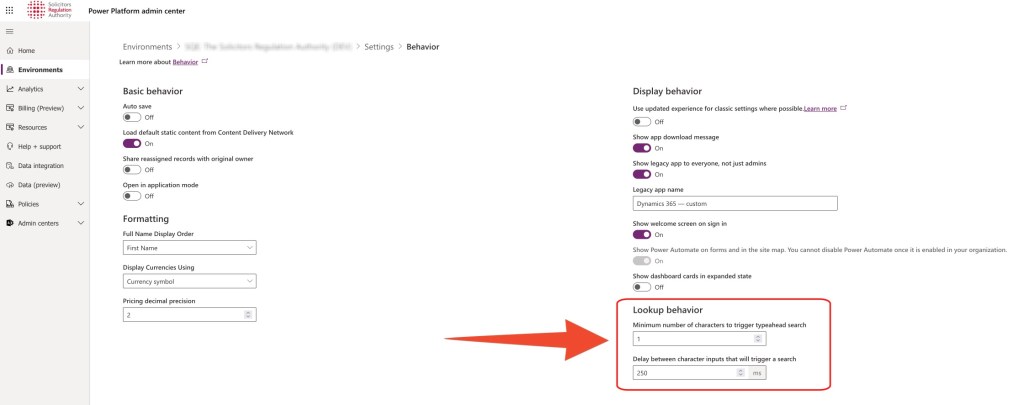
Taken from: https://crmtipoftheday.com/1438/turn-on-auto-search-for-lookups/
Update these settings as per the screenshot to improve the search experience for users:
In this post we are looking at where to find icons and how to add them to a custom tables in Dynamics CRM.
Check out the YouTube video to take you through the process step-by-step.
There are a couple places where the icon of a table shows in the system, these are:
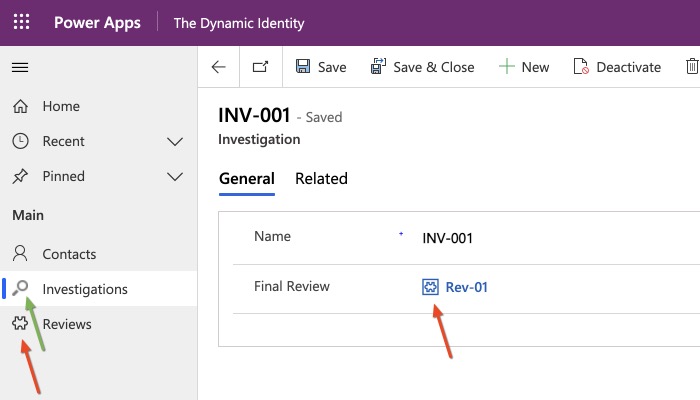
So, let’s first talk about the technical requirements for an icon:
N.B. other format are permitted, but svg offers the best squality
A few great and free websites are:
However, personally, I prefer “Metro Studio” by Syncfusion https://www.syncfusion.com/downloads/metrostudio
You will have to sign up download and install the software first. However once that is done, it will significantly improve the speed at which you can find and download items in the future, as it remembers your settings and let you save items into projects from data retrieval.
Set the colour to black (#FF000000) or dark grey, at least: #FF757474

One advantage of icons8 is that you can customise icons, but adding extra elements to them – just make sure to filter by “Simple small”, as this only shows icons that are available in 16×16 pixels.

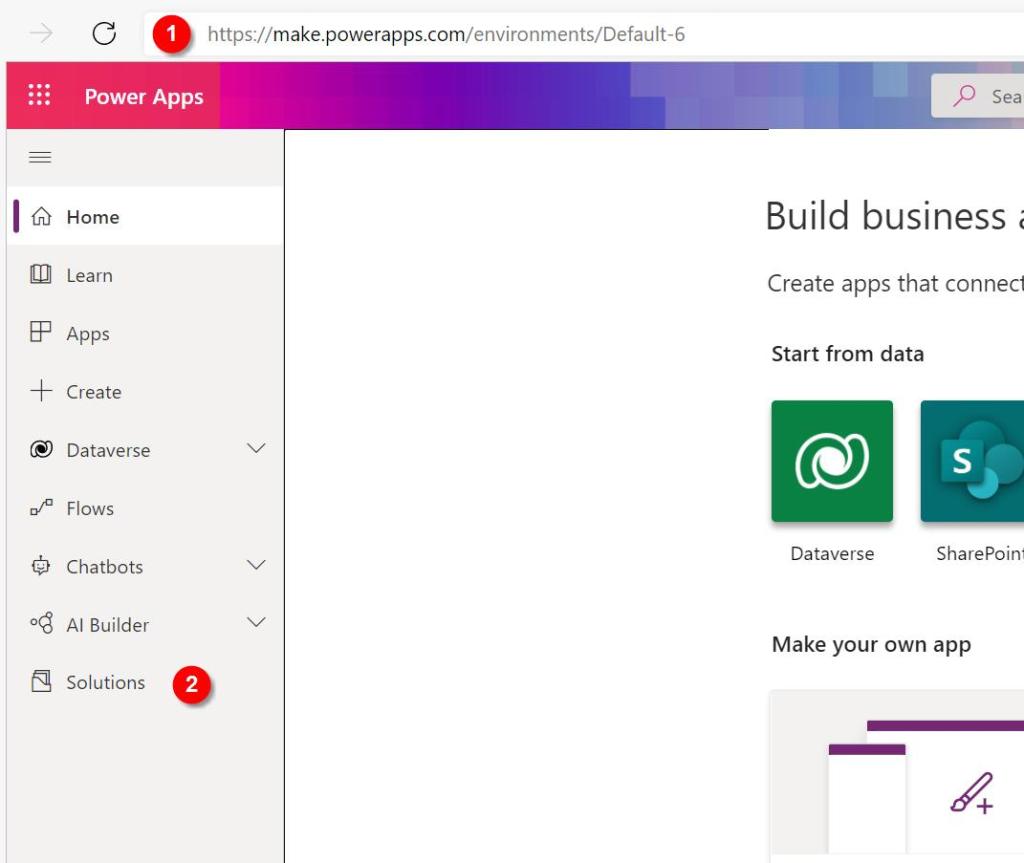
Head over to the make.powerapps.com UI. First, we will need to add the icon as a new webresouce to CRM – go to your web resouce solution, click on new > more > web resource and then upload the png like this – consider a naming pattern to stick to, such as entityname_icon_dimension:

In order to add it to a custom table, navigate to the relevant table, select properties and then add the image there:
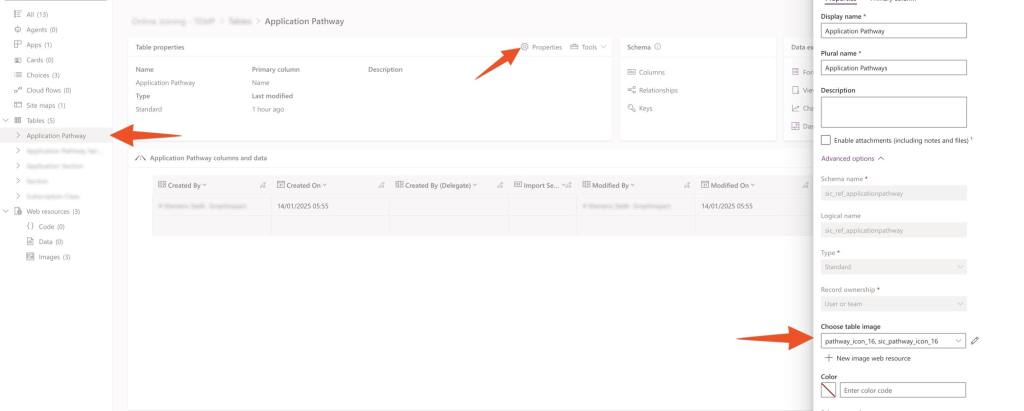
That’s it, click on save and reload your MDA – voila!
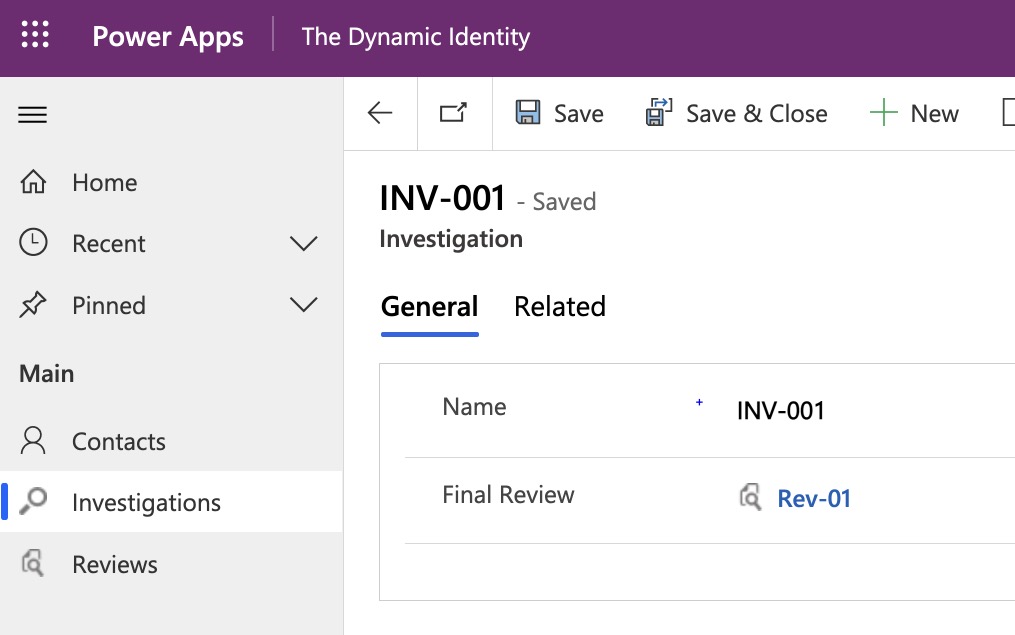
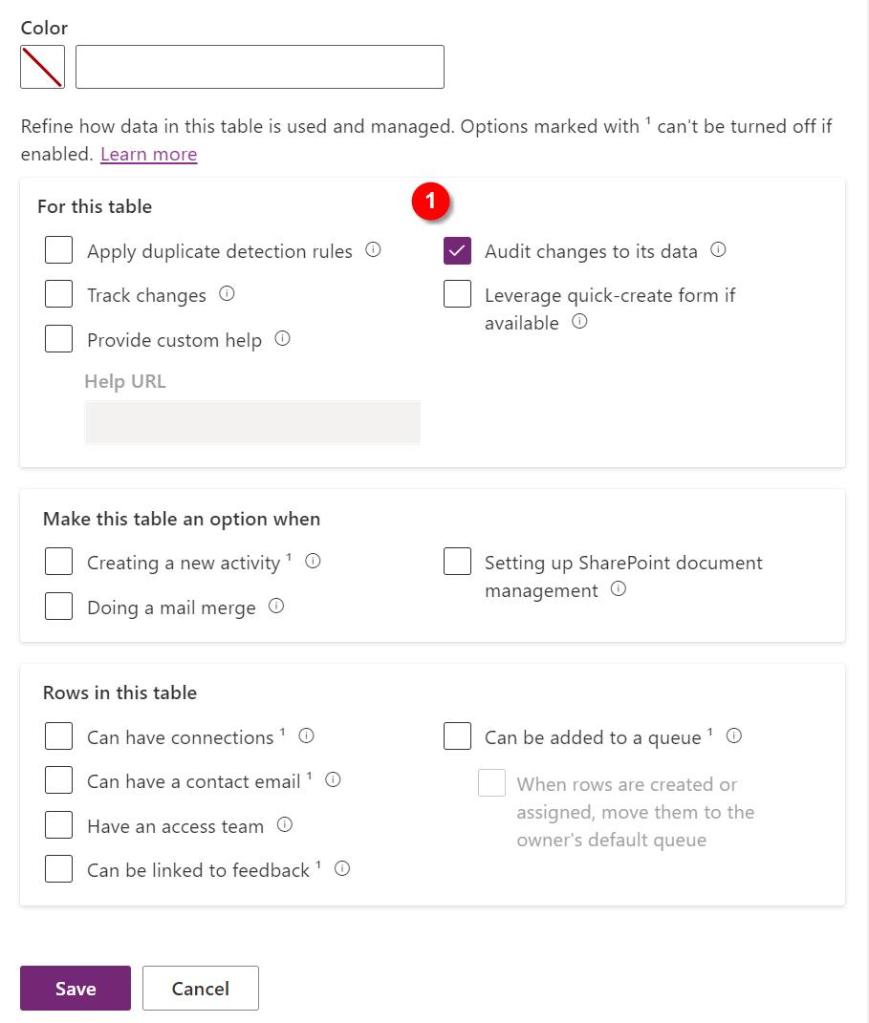
This post will outline the most important things to consider when creating a new table (formerly: custom entity) in Microsoft Dynamics CRM.
Check out the Youtube version.
> Always create entities within a solution
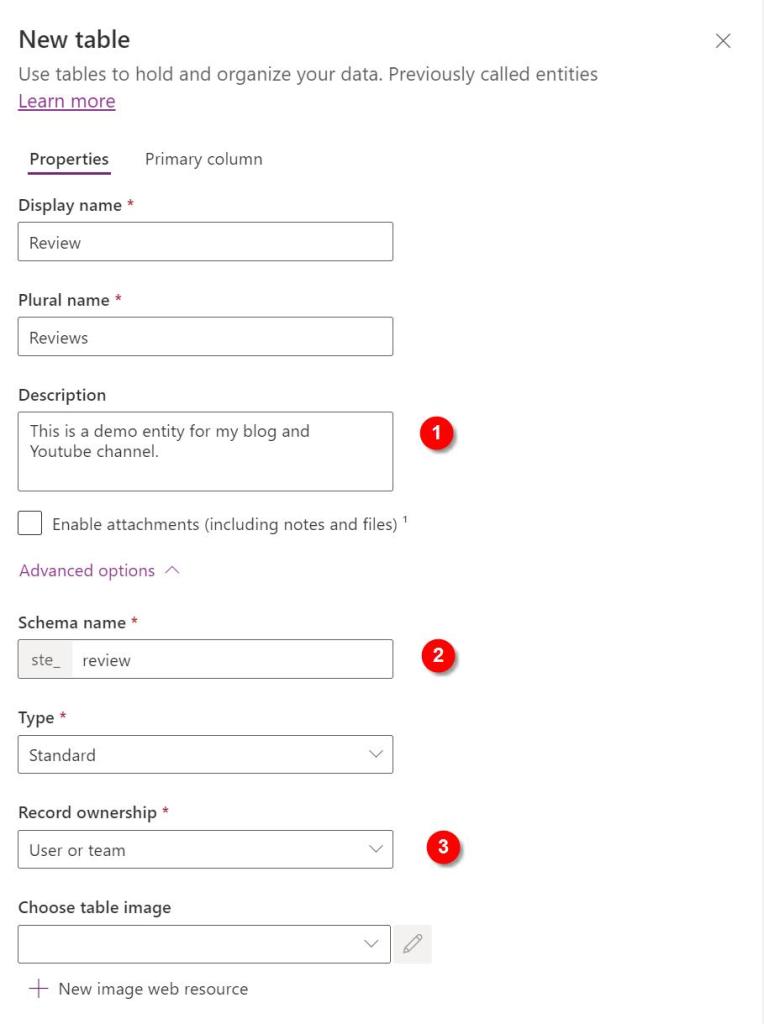
After choosing the name (and plural name):
That’s it, hit save and the new table will be created.
I recommend that you take a look at my checklist for customising a new table:
[WIP – add the link when the post has been pubished]
You might also want to add a custom icon:
[WIP – add the link when the post has been pubished]




 The Dynamic Identity