
Check out the Youtube version.
> Always create entities within a solution
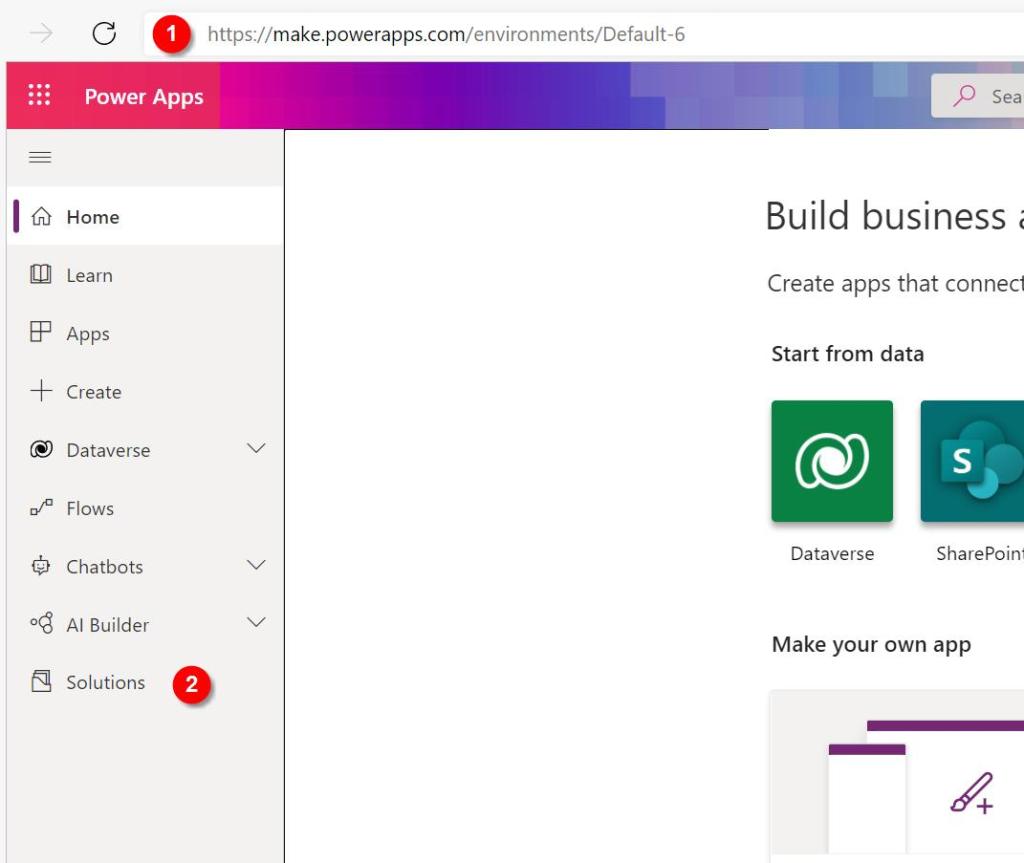
- Navigate to https://make.powerapps.com/ and sign in
- Go to “Solutions”
- Create a new solution or use an existing one
- Create a new “Table” (what used to be called “entity”)


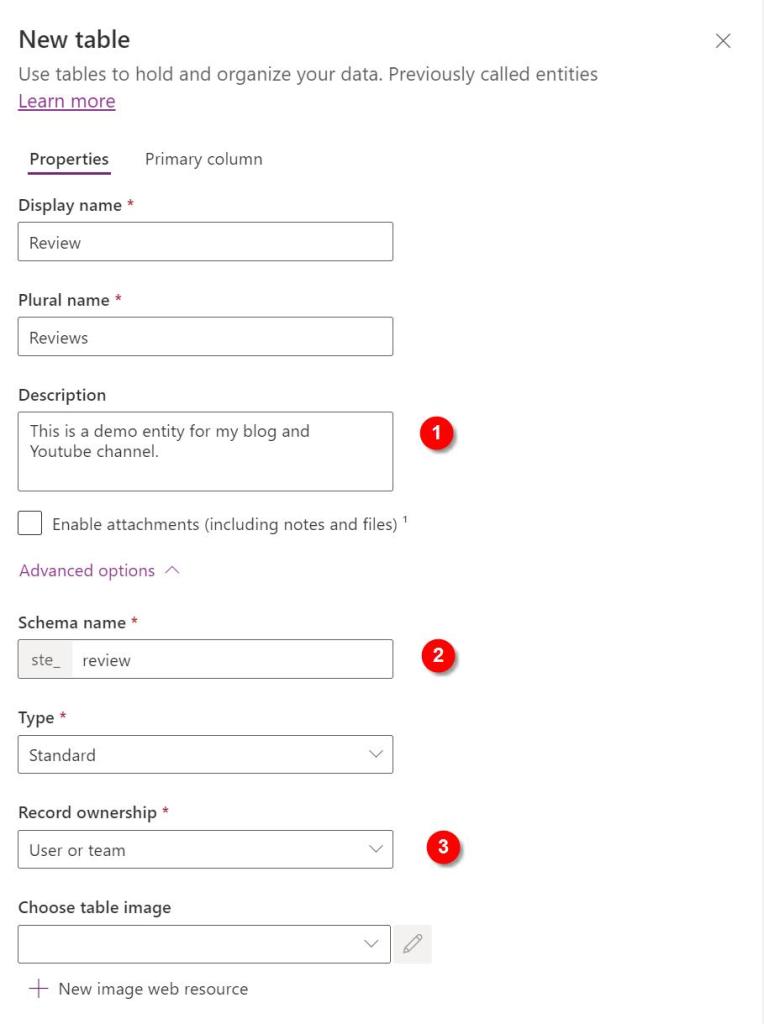
After choosing the name (and plural name):
- Description: add at least 1 sentence in here – others will thank you later!
- Schema name: update the schema name to all lowercase letters (and consider if this is a reference data entity, in which case you should prefix it with “ref_”)
- Record ownership: always set this to “User or team”, there are no advantages to chosing “Organization”, only disadvantages.
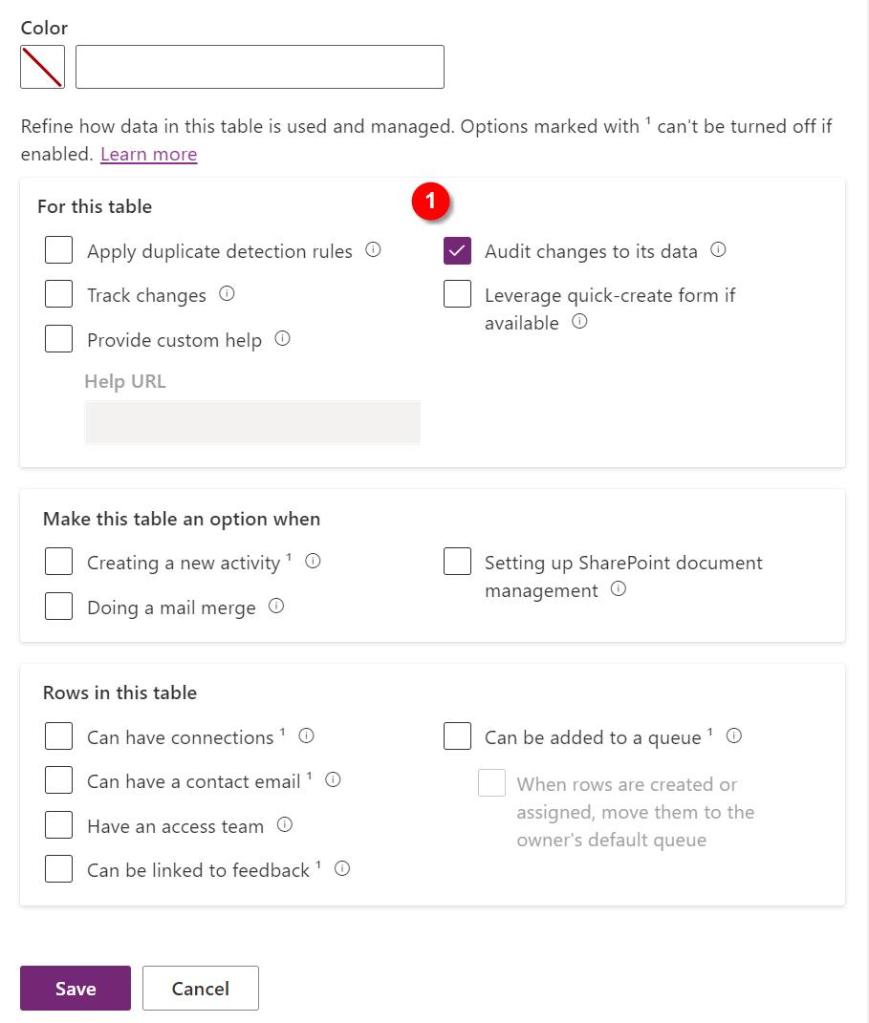
- Other setting:
- Uncheck all boxes – unless you are certain you will need the feature – these can be checked later if required
- consider checking the “Audit changes to its data” – this will likely come in handy during development and testing, as it will allow you to better understand what might have caused an error. To safe space, consider turning this off before releasing into PRODUCTION
- Primary column – Schema name:
- change the schema name of name field to all lower case
- leave it as “name” – this helps later to identify the column containing the name.

That’s it, hit save and the new table will be created.
I recommend that you take a look at my checklist for customising a new table:
[WIP – add the link when the post has been pubished]
You might also want to add a custom icon:
[WIP – add the link when the post has been pubished]
 The Dynamic Identity